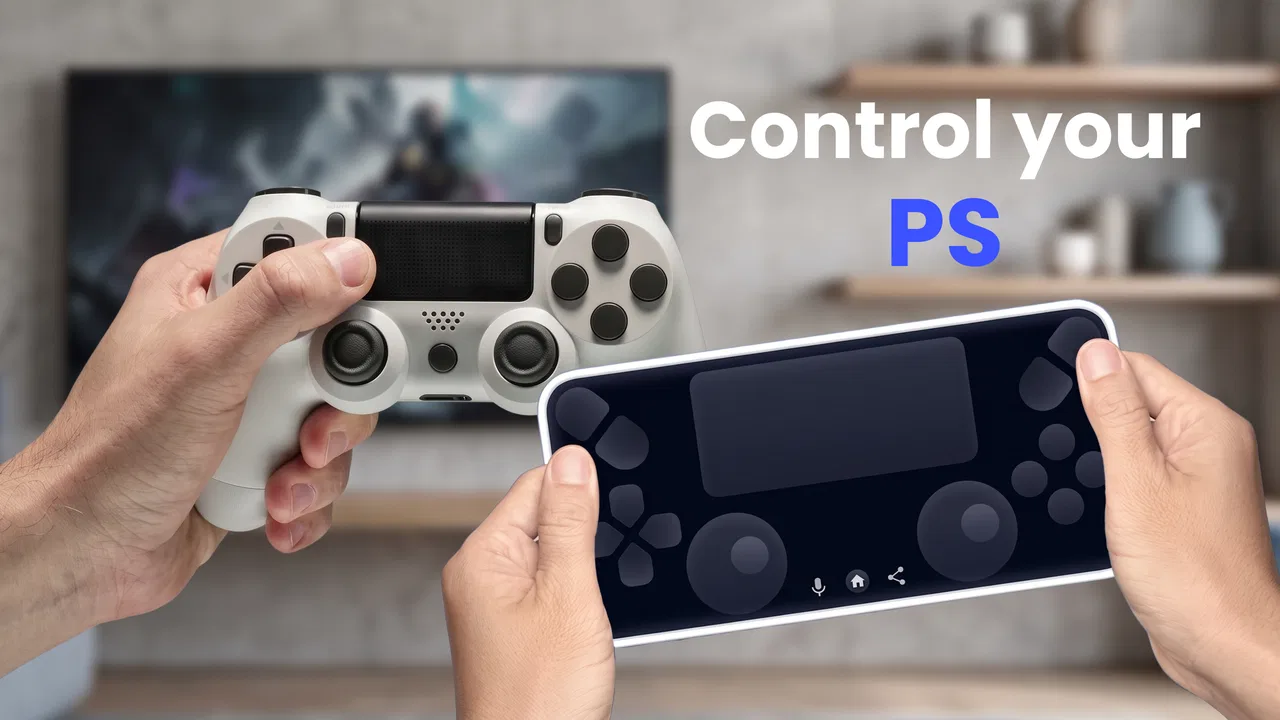
Ps Controller
- 3.3
- Rating
- 10.00K
- Installs
- Free
- Price

 Analysis by App-foxy
I tested Ps Controller with one main question in mind: can it make a phone useful as a remote control for PS4 or PS5 Remote Play, and is the experience comfortable for people with different abilities or playing situations? The answer is mixed but practical. The app has a clear purpose, costs nothing to try, and may help when a physical controller is unavailable. At the same time, turning a touchscreen into a gamepad brings limitations that become especially noticeable during fast games, long sessions, or any situation where precise physical feedback matters.
Ps Controller is a free Android app from Fa9ssa in the Libraries & Demo category. It is aimed at people who want to use their phone as a controller while using Remote Play on a PlayStation console. The app is rated for Everyone, runs on Android 7.0 or later, and its current version is 13.0. It was released on March 16, 2025, and has passed ten thousand installs, with an average rating of 3.3 from more than one hundred ratings. Those figures suggest a small but real user base rather than a mature replacement for the official hardware.
My overall impression is that this is best treated as a backup tool or an occasional-access option, not as a universal substitute for a DualShock or DualSense. Its value depends less on how demanding the game is and more on why you need a phone-based controller in the first place.
You May Also Like

 AccuWeather: Weather Radar
AccuWeather Review: A Quick, Clear Forecast for Everyday Decisions
For everyday plans, the best forecast is the one you can understand quickly. AccuWeather makes rain timing, radar, and local conditions easy to act on, with a few trade-offs.

 Hill Climb Racing
Why Hill Climb Racing Still Turns Crashes Into One More Run
A tiny car, a bumpy hill and one more upgrade: Hill Climb Racing keeps resurfacing because its simple chaos makes every near-miss feel personal.

 AliExpress - Shopping App
AliExpress Makes Global Shopping Feel Personal, but Shoppers Bear the Risk
AliExpress turns a global marketplace into a pocket-sized discovery engine. Its reach is useful, its shopping loop compelling, and its trade-offs easy to miss.

 Lords Mobile: Kingdom Wars
Lords Mobile Is a Kingdom-Building Routine, Not a Quick Match
A case-by-case verdict on the building, battles, device demands, and social commitments that make Lords Mobile rewarding for some players and exhausting for others.

 PDF Scanner app - TapScanner
TapScanner Makes Paperwork Easier to Capture, Check, and Share
TapScanner makes scanning with a phone feel less like a rescue operation and more like a dependable step in getting work done. Its capture tools are useful, though not flawless.

 Block Blast!
 Shows How Much a Puzzle Game Can Leave Out
A quiet grid game shows why puzzle players increasingly value instant clarity, repeatable skill and low-pressure play—and where the genre still needs to catch up.
More From Our News Desk
View All News


How the interface feels to read and navigate
The first thing I look for in a controller app is whether I can understand the screen without hunting for controls. A virtual gamepad needs to communicate its layout quickly because the player may already be dealing with a second screen, a console connection, and a game menu. Ps Controller keeps its purpose straightforward: it presents the phone as a PS4 or PS5 controller for Remote Play rather than trying to become a general-purpose game hub.
That narrow focus is helpful for readability. There are fewer concepts to learn than in an app filled with game libraries, profiles, streaming settings, and social features. For someone who is not comfortable with technical setup, a simple controller-focused screen is less intimidating than a full remote-play suite. I also found that the familiar PlayStation button arrangement makes the display easier to interpret if the user already knows the physical controller.
However, familiarity does not automatically make a touchscreen layout easy for everyone. Physical buttons provide edges, gaps, and resistance. On a phone, the player has to look down or rely on memory to find a virtual button. That creates a navigation problem during play, especially when several controls sit close together. A person with reduced vision may need to enlarge the phone display or move closer, while someone who struggles with touch accuracy may press a neighboring control by mistake.
The app’s usefulness therefore changes depending on the task. Browsing a console menu, selecting a game, or confirming a simple prompt is much easier than controlling a character through a crowded action sequence. For menu navigation, the phone can feel perfectly adequate. For continuous movement and camera control, the lack of tactile landmarks becomes a much bigger issue.
I would recommend setting up the app before handing the phone to another player. That makes it easier to check whether the virtual controls are visible at the chosen brightness and whether the user can identify the important areas without rushing. A short test in a calm menu is more revealing than immediately launching a difficult game.
Why the familiar layout still needs preparation
The PlayStation-style arrangement gives experienced players a head start, but it does not solve every readability concern. A physical controller can be held without looking, while a phone usually needs more visual attention. This means the player may spend less time watching the game and more time checking finger placement.
One useful workflow is to use Ps Controller first for games with pauses, turn-based decisions, slower exploration, or simple menu choices. These situations reduce the cost of a missed tap. If the phone works comfortably there, the user can decide whether it is suitable for more demanding play rather than assuming that success in a menu will translate to every genre.
Screen size matters too. A larger phone can make virtual buttons easier to see, but it may also be harder to hold for a long period. A smaller phone is more portable, yet its controls can feel crowded. This is not a flaw unique to Fa9ssa’s app; it is a basic trade-off of putting a controller on a touchscreen. Still, it should be part of the decision before relying on the app for a full session.
Motor and sensory considerations during play
The strongest reason to try a phone controller is often physical rather than technical. A user may not have a console controller nearby, may prefer the lighter shape of a phone, or may need to use one hand for part of a session. Ps Controller can be useful in those cases because the input surface is already attached to a device many people carry every day.
For limited movement, the phone may offer a different grip from a traditional controller. Some users may find it easier to rest the phone on a table or cushion and tap the screen instead of holding a heavier gamepad. That setup can reduce the need to keep both hands wrapped around a controller. It is also possible to experiment with a stand or a stable surface, although the comfort of that arrangement depends on the individual and the game.
There is an important exception: resting the phone can make movement controls harder to reach. A physical controller separates the screen from the buttons and gives both hands a stable shape. With Ps Controller, the device itself is the control surface, so changing its position can affect reach, visibility, and accidental touches at the same time.
Users with tremors, reduced dexterity, or difficulty making small taps may encounter false inputs. A touchscreen does not offer the same confirmation as a click or trigger pull. If a game requires repeated, rapid, or simultaneous actions, the phone may be tiring or frustrating. The app can still be worthwhile for slower games, but I would not describe it as automatically accessible simply because it removes the need for a physical controller.
Sensory needs also deserve attention. A phone screen can be adjusted using the device’s own display settings, which may help with brightness or visual contrast, but the app itself should not be assumed to provide specialized accessibility controls. If a player depends on strong tactile feedback, a physical controller remains the safer choice. If the player mainly needs a visible, familiar arrangement and can tolerate looking at the controls, the phone may be a workable alternative.
Choosing games that match the input method
The most realistic way to get good results is to match the app with the game. I would start with titles where a delayed or imprecise press has a small consequence: turn-based adventures, puzzle games, menu-heavy role-playing games, and relaxed exploration. These can make the virtual layout feel useful instead of restrictive.
I would be cautious with competitive games, precision platformers, racing games that demand constant steering, and action titles built around quick combinations. Even if the connection is stable, the physical feel of the controls remains different. A player who normally depends on the shape of the sticks and the travel of the triggers may find that the phone removes too much information from the hands.
A practical test is to perform the same short sequence three times: move, open a menu, and use two separate buttons without looking away from the game. If the player repeatedly loses position or presses the wrong area, that is a sign to use a physical controller for that title. This test is more useful than judging the app by its first successful connection.
Situational access: when a phone controller makes sense
Ps Controller is most convincing in temporary situations. Imagine visiting someone who has a PS4 or PS5 set up for Remote Play, but the usual controller is charging, misplaced, or being used by another person. If the phone can serve as the second input device, the app may turn an otherwise inconvenient wait into a playable session.
It can also suit a user who wants to check a console menu from another room without carrying a separate controller. For short interactions, the phone’s convenience may outweigh the loss of tactile precision. The same applies to testing Remote Play before deciding whether a dedicated controller is worth buying.
Another useful scenario is travel. A person who already carries a phone may prefer to avoid packing an additional controller for a brief trip. That convenience is strongest when the expected play is casual and the user accepts that the phone will not feel identical to Sony’s hardware. For a long holiday session or a game that depends on exact inputs, the space saved may not compensate for the less natural controls.
The app may also help households with different physical preferences. One person can use a regular controller while another tries the phone, provided the setup supports the intended Remote Play arrangement. This gives the phone a role as an extra option rather than forcing everyone to use the same input method.
There is a catch with every situational use: the phone must remain available as a controller, so it is not convenient to switch constantly between gameplay and ordinary phone tasks. Notifications, calls, battery concerns, and the need to hold the device can all interrupt the experience. I would use a spare phone when possible, especially if the main phone is needed for work, navigation, or emergency contact.
Who should try it first
I think Ps Controller is worth trying for Android users who already use PlayStation Remote Play and need an inexpensive fallback. It is also a reasonable experiment for people who are unsure whether phone-based control can meet their needs. Since the app is free, the main investment is setup time and patience while testing it with the games you actually play.
It is less suitable for someone looking for a polished, long-term replacement for a dedicated controller. If your priority is precise aiming, reliable tactile feedback, comfortable triggers, or extended sessions, standard PlayStation hardware will probably feel better. The app should not be judged as a direct equal to a physical gamepad; its advantage is availability, not identical control quality.
People who need highly specialized input arrangements should also be careful. A phone controller may change the shape of the interaction, but that does not mean it provides every adaptation a player might require. If a user depends on remapping, external switches, strong tactile cues, or a particular grip, the app should be tested alongside the tools they already use rather than treated as a complete solution.
Remaining barriers and everyday friction
The biggest barrier is the touchscreen itself. Even a clearly arranged layout cannot reproduce the physical separation between a thumbstick, directional pad, face buttons, shoulder buttons, and triggers. That affects muscle memory and makes blind operation difficult. New users may adapt for basic play, but experienced players will notice the difference immediately in demanding games.
Another barrier is comfort. Holding a phone like a controller can put pressure on the fingers because the device has a flat, narrow shape rather than rounded grips. Supporting it on a surface may help the wrists but can reduce flexibility. I would plan short sessions at first and pay attention to hand fatigue instead of assuming that a lighter device is automatically more comfortable.
Visual attention is a separate concern. A player with low vision may benefit from a larger display, but the virtual controls still compete with the game image for attention. Enlarging the phone’s interface through system settings can have unintended effects on what fits on screen, so it is better to test the exact layout before relying on it. A physical controller can be easier to operate without watching the hands.
There is also a learning curve around Remote Play itself. Ps Controller is not a console, a streaming service, or a game library; it is an input tool for the Remote Play use case described by its listing. That distinction matters because a user may install it expecting the app to handle every part of connecting to and playing a PlayStation. I would approach it as one component in that setup and confirm that the console and Remote Play arrangement are already ready.
Connection quality can influence the experience as well, although the app cannot remove the limits of remote play. A poor network path may create delayed or missed input, and a touchscreen makes that delay feel even more frustrating because there is little physical feedback to reassure the user that a press registered. For troubleshooting, I would first test a simple menu action, then a slow game sequence, before blaming the virtual controller for every problem.
The rating of 3.3 gives a useful warning about expectations. It is not a reason to dismiss the app, but it does suggest that the experience will not be equally smooth for everyone. I would install it with a specific purpose in mind, test it on the intended phone, and keep a physical controller available if the game or the player’s needs demand more precision.
An inclusive verdict for the right situation
My final view is that Ps Controller has genuine value as an access option, but its strengths are situational. It can give an Android phone a practical role in PS4 or PS5 Remote Play, especially when a physical controller is unavailable, inconvenient to carry, or uncomfortable for a particular user. Its free price and Everyone age rating make it easy to explore without a financial commitment, and Fa9ssa has kept the concept focused enough for the purpose to be understandable.
Still, I would not recommend it blindly to every PlayStation player. Touch controls remove tactile landmarks, may increase visual effort, and can expose differences in dexterity more clearly than a physical gamepad. The app is most inclusive when the user chooses a suitable game, supports the phone in a comfortable position, and treats it as an alternative input method rather than a perfect hardware replacement.
The best reason to try it is flexibility, not performance. If you need a temporary controller for a menu, a relaxed game, a travel setup, or an experiment with Remote Play, it may solve a real problem. If you need fast, precise, fatigue-free control or a highly customized setup, a dedicated controller is likely the better option.
I would recommend installing it when your situation calls for a phone-based fallback, then judging it through a short, realistic test with your own hands, phone, and game. That approach gives the app a fair chance while respecting the barriers that touchscreen control cannot remove.
FAQs for Ps Controller
01What is Ps Controller and what does it do?
Ps Controller is an app designed to turn your smartphone into a virtual game controller for PlayStation consoles. It allows users to connect their devices via Bluetooth or Wi-Fi, offering a convenient and portable solution for gaming without a physical controller. Ideal for casual gaming sessions or when your usual controller isn't available.
02Is Ps Controller compatible with all PlayStation consoles?
Ps Controller primarily supports PlayStation 4 and PlayStation 5 consoles. However, functionality may vary based on the console’s firmware updates and specific features of the app. It's always recommended to check the app’s description for the latest compatibility information before downloading.
03How do I connect Ps Controller to my PlayStation console?
To connect Ps Controller to your PlayStation, ensure both the console and your smartphone are on the same Wi-Fi network. Open the app, follow the on-screen instructions to pair your device with the console, and begin using it as a game controller. Detailed setup guides are usually available within the app.
04Are there any in-app purchases or ads in Ps Controller?
Ps Controller may offer in-app purchases to unlock additional features or remove ads. While the basic functionality is often free, premium options might enhance user experience by offering customization or advanced control settings. Users should check the app store listing for detailed information on pricing.
05What are the limitations of using Ps Controller compared to a physical controller?
While Ps Controller provides a convenient alternative, it may not offer the same tactile feedback and precision as a physical controller. Some users might experience input lag or find the touch controls less intuitive for fast-paced gaming. It's best suited for casual gameplay or as a backup option.
Pros
- Intuitive interface enhances gameplay.
- Seamless Bluetooth connectivity.
- Customizable button mapping.
- Long battery life for extended play.
- Compact and portable design.
Cons
- Limited compatibility with some games.
- Initial setup can be confusing.
- May experience occasional lag.
- No support for older Android versions.
- Lacks advanced haptic feedback.

Ps Controller
Gallery